

PayPal is a digital wallet that enables buyers to pay using their PayPal balance, bank accounts, or cards. It provides a trusted payment experience with buyer protection and is widely recognized by consumers worldwide.Documentation Index
Fetch the complete documentation index at: https://docs.anglpay.com/llms.txt
Use this file to discover all available pages before exploring further.
Setup
Follow the PayPal setup instructions before configuring PayPal payments.Vaulting
To allow customers to tokenize their PayPal account for future payments, you need to contact PayPal and request that your account be enabled for Vault. Once Vault has been enabled on your PayPal merchant account, you can toggle the tokenization feature on within the PayPal connector settings in the dashboard.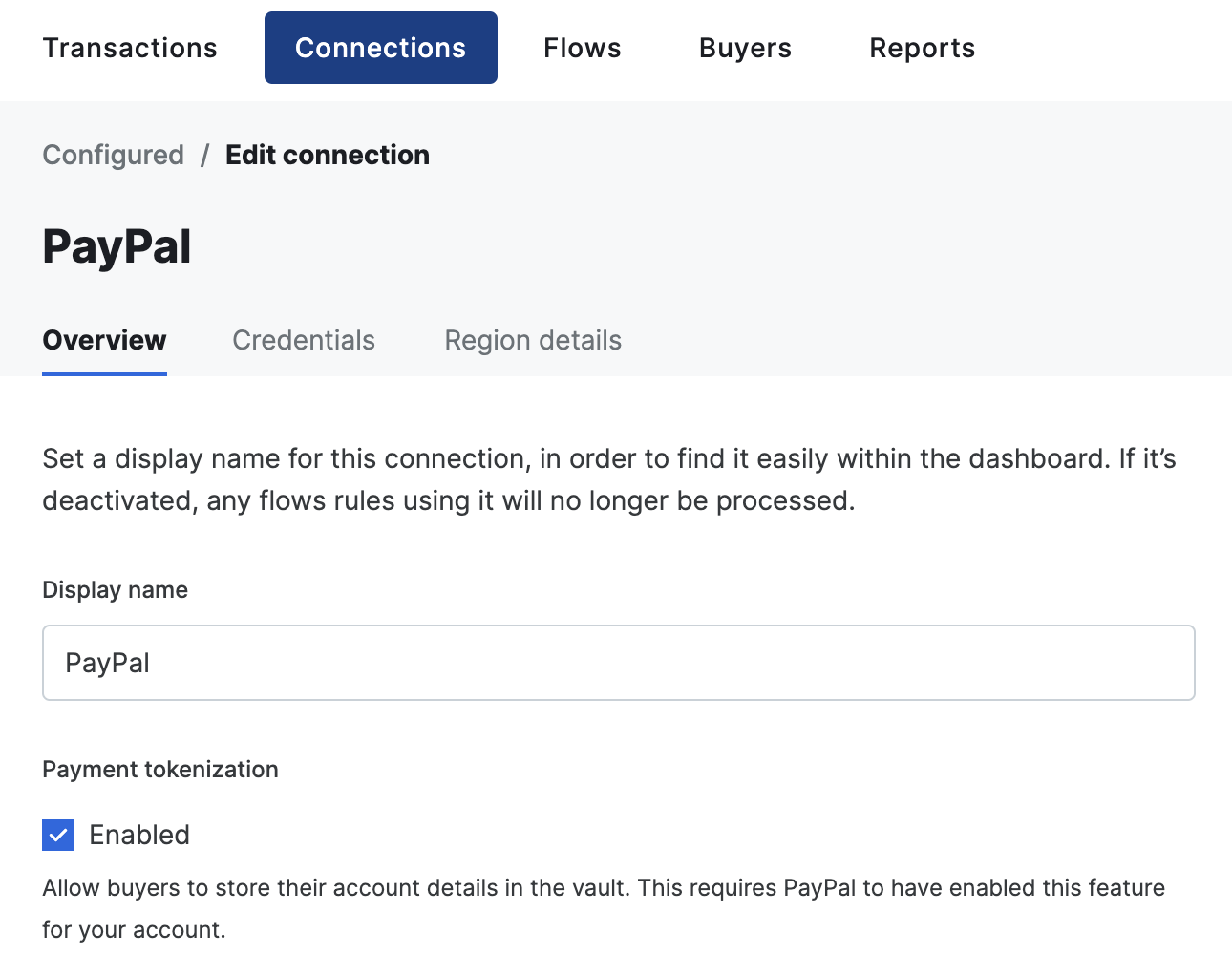
Ingest billing and shipping details
By default, billing, and shipping details received from PayPal are not imported. To enable this feature, head over to Connections → Configured and select your PayPal connector. Next, go to Credentials and toggle Import billing details and/or Import shipping details. When Import billing details is enabled, any of the user’s name, email address, and billing address are automatically imported into your transaction, merging it with any data already present on the transaction. Linked buyers are not updated, but only the snapshot of the buyer on the transaction. When Import shipping details is enabled, the user’s shipping address is automatically requested and imported into your transaction, merging it with any data already present on the transaction. Linked buyers are not updated, but only the snapshot of the buyer on the transaction.The ingestion of billing and shipping details is not available for tokenized payments.
Payment receiving preferences
By default, PayPal only settles payments automatically if the payment is in the primary currency of the PayPal merchant account. If you need to accept payments in additional currencies, you need to open a PayPal account balance in each of the currencies you intend to accept. Alternatively, you can configure your PayPal merchant account to automatically convert payments into the primary currency. If you receive a payment in a currency that your PayPal merchant account is not configured to accept, the payment enters a pending state and you need to log in to the PayPal merchant dashboard to trigger settlement, either by opening the required currency balance, or converting the payment into the primary currency of your PayPal account.FraudNet
FraudNet is a PayPal-developed JavaScript library that collects browser-based data to help reduce fraud. Upon checkout, the FraudNet library sends data elements to PayPal Risk Services for fraud and risk assessment. When creating transactions, the PayPal FraudNet library must be included on the checkout page for all transactions. When using Embed, the PayPal FraudNet library is included automatically. If you are using the API directly, you need to use the device fingerprinting library which includes the PayPal FraudNet library.Features
PayPal supports the following features:- Payment method tokenization - Store PayPal accounts for recurring or future transactions
- Delayed capture - Authorize a payment and capture it at a later time (up to 3 days for PayPal, 29 days with Vault)
- Over capture - Capture up to 115% of the authorized amount or authorized amount + $75 USD (whichever is less)
- Partial capture - Capture a portion of the authorized amount
- Refunds - Refund transactions in full or in part (up to 180 days)
- Partial refunds - Issue multiple partial refunds up to the captured amount
- Void - Cancel an authorized transaction before capture
- Deep linking - Direct integration with PayPal mobile app using deep links
- Transaction sync - Automatic synchronization of transaction status updates
- Settlement reporting - Detailed settlement reports via SFTP
- Webhook integration - Real-time notifications for payment events
Supported countries
PayPal supports transactions from buyers in the following countries:| Country code | Country code | Country code | Country code | Country code | Country code | Country code | Country code |
|---|---|---|---|---|---|---|---|
AD | AE | AG | AI | AL | AM | AO | AR |
AT | AU | AW | AZ | BA | BB | BE | BF |
BG | BH | BI | BJ | BM | BN | BO | BR |
BS | BT | BW | BY | BZ | CA | CD | CG |
CH | CI | CK | CL | CM | CO | CR | CV |
CY | CZ | DE | DJ | DK | DM | DO | DZ |
EC | EE | EG | ER | ES | ET | FI | FJ |
FK | FM | FO | FR | GA | GB | GD | GE |
GF | GI | GL | GM | GN | GP | GR | GT |
GW | GY | HK | HN | HR | HU | ID | IE |
IL | IN | IS | IT | JM | JO | JP | KE |
KG | KH | KI | KM | KN | KR | KW | KY |
KZ | LA | LC | LI | LK | LS | LT | LU |
LV | MA | MC | MD | ME | MG | MH | MK |
ML | MN | MQ | MR | MS | MT | MU | MV |
MW | MX | MY | MZ | NA | NC | NE | NF |
NG | NI | NL | NO | NP | NR | NU | NZ |
OM | PA | PE | PF | PG | PH | PL | PM |
PN | PT | PW | PY | QA | RE | RO | RS |
RU | RW | SA | SB | SC | SE | SG | SH |
SI | SJ | SK | SL | SM | SN | SO | SR |
ST | SV | SZ | TC | TD | TG | TH | TJ |
TM | TN | TO | TT | TV | TW | TZ | UA |
UG | US | UY | VA | VC | VE | VG | VN |
VU | WF | WS | YE | YT | ZA | ZM | ZW |
Supported currencies
PayPal supports processing payments in the following currencies:| Currency code | Currency code | Currency code | Currency code | Currency code | Currency code | Currency code | Currency code |
|---|---|---|---|---|---|---|---|
AUD | BRL | CAD | CHF | CNY | CZK | DKK | EUR |
GBP | HKD | HUF | ILS | INR | JPY | MXN | MYR |
NOK | NZD | PHP | PLN | RUB | SEK | SGD | THB |
TWD | USD |
Limitations
The following features are not supported by this connector:- Zero auth - Zero-dollar verification transactions are not supported
- Partial authorization - Partial authorization for insufficient funds is not available
Integration
For PayPal, the default integration is through a redirect to PayPal’s hosted checkout page. Start by creating a new transaction with the following required fields.payment_method.approval_url and the buyer_approval_pending status.
approval_url so they can log in to PayPal, review the transaction, and approve the payment. After approval, the buyer is redirected to the redirect_url you provided when creating the transaction. Do not rely solely on the redirect - either poll the transaction or (recommended) rely on webhooks to detect the final status (for example capture_succeeded or failure states).
Direct integration
PayPal provides a JavaScript SDK for a direct integration. For this flow you should create a transaction on the server and then use the resultingsession_token to get the session data required to initialize the PayPal JS SDK on your checkout page.
To start, follow the steps below for your integration path.
Web integration
- Create a new transaction with the
integration_clientset toweb.
- Use the
session_tokenfrom the response to get the session data for the transaction.
- Load and initialize the PayPal JS SDK using the session data.
Mobile integration
- Create a new transaction with the
integration_clientset toiosorandroid. Use your app deep link forredirect_url(for example,yourapp://).
- Use the
session_tokento get the session data for mobile.
- Initialize the PayPal Mobile SDK.
Complete the transaction
After the buyer completes the payment flow, the PayPal SDK provides anonApprove callback (Web) or a completion block/callback (Mobile). To finalize the payment, send a GET request to the tokenized default_completion_url from the session response. This URL is safe to call from the client as it contains an embedded token.
intent=capture, the system captures the transaction.
Please refer to the PayPal SDK documentation for further guidance.